Question: By using which of the functionality temporary files of the computer can be removed?
Answer:
To remove temporary files from a computer, you can use the following functionality:
1. Disk Cleanup (Windows): Windows provides a built-in utility called "Disk Cleanup" that helps you remove temporary files and other unnecessary files from your computer. To access it, you can follow these steps:
- Press the Windows key + R to open the Run dialog box.
- Type "cleanmgr" and press Enter or click OK.
- Select the drive you want to clean up (usually the C: drive) and click OK.
- The Disk Cleanup utility will scan your drive and present a list of file types you can remove. Select the file types you want to delete, such as "Temporary files" or "Temporary Internet files," and click OK.
2. Storage Management (macOS): On macOS, you can use the built-in "Storage Management" functionality to clean up temporary files and optimize storage. Here's how to access it:
- Click on the Apple menu in the top-left corner of the screen and select "About This Mac."
- In the "Overview" tab, click on the "Storage" button.
- Click on the "Manage…" button.
- The Storage Management window will open, showing different categories of files. Click on "Recommendations" and follow the recommendations provided, such as removing temporary files, caches, and unused applications.
3. Third-Party Cleanup Utilities: There are also third-party software applications available that can help you clean up temporary files and optimize your computer's storage. These tools often provide additional features and more advanced cleaning options.
When removing temporary files, it's important to exercise caution and ensure that you're not deleting any important or necessary files. It's recommended to review the files that will be deleted before confirming their removal.
MCQ: By using which of the below functionality temporary files of the computer can be removed
Explanation:
To remove temporary files from a computer, you can use the following functionality:
1. Disk Cleanup (Windows): Windows provides a built-in utility called "Disk Cleanup" that helps you remove temporary files and other unnecessary files from your computer. To access it, you can follow these steps:
- Press the Windows key + R to open the Run dialog box.
- Type "cleanmgr" and press Enter or click OK.
- Select the drive you want to clean up (usually the C: drive) and click OK.
- The Disk Cleanup utility will scan your drive and present a list of file types you can remove. Select the file types you want to delete, such as "Temporary files" or "Temporary Internet files," and click OK.
2. Storage Management (macOS): On macOS, you can use the built-in "Storage Management" functionality to clean up temporary files and optimize storage. Here's how to access it:
- Click on the Apple menu in the top-left corner of the screen and select "About This Mac."
- In the "Overview" tab, click on the "Storage" button.
- Click on the "Manage…" button.
- The Storage Management window will open, showing different categories of files. Click on "Recommendations" and follow the recommendations provided, such as removing temporary files, caches, and unused applications.
3. Third-Party Cleanup Utilities: There are also third-party software applications available that can help you clean up temporary files and optimize your computer's storage. These tools often provide additional features and more advanced cleaning options.
When removing temporary files, it's important to exercise caution and ensure that you're not deleting any important or necessary files. It's recommended to review the files that will be deleted before confirming their removal.
Discuss a Question
Related Questions
- 1. When creating new folder what is default name given by the computer?
- 2. Which toolbar is used to change the font and font size in MS WORD?
- 3. What is Outlook express?
- 4. Who is working as link between Hardware and software?
- 5. Which function is used for finding the square root of any number in MS EXCEL?
- 6. How many total Rows are there in MS EXCEL?
- 7. The process of taking the mouse at desired place is known as
- 8. Horizontal line seen at the bottom of MS WORD is known as
- 9. What is System Software?
- 10. Which option is used to get back the information immediately after deleting from the file?
You may be interested in:
Computer Basics MCQsRecently Added Articles

How Image to Text Conversion Make Printed Study Materials Easier to Use?
Last updated on: October 23, 2026Posted by: ExamRadar

7 Best Online Exam Makers for Teachers, Schools, and Businesses
Last updated on: October 21, 2026Posted by: ExamRadar

How to pick a Bintan resort when you’ve only got 48 hours
Last updated on: September 23, 2026Posted by: ExamRadar

Features to Look for While Choosing the Best Automation Tool
Last updated on: July 15, 2026Posted by: ExamRadar
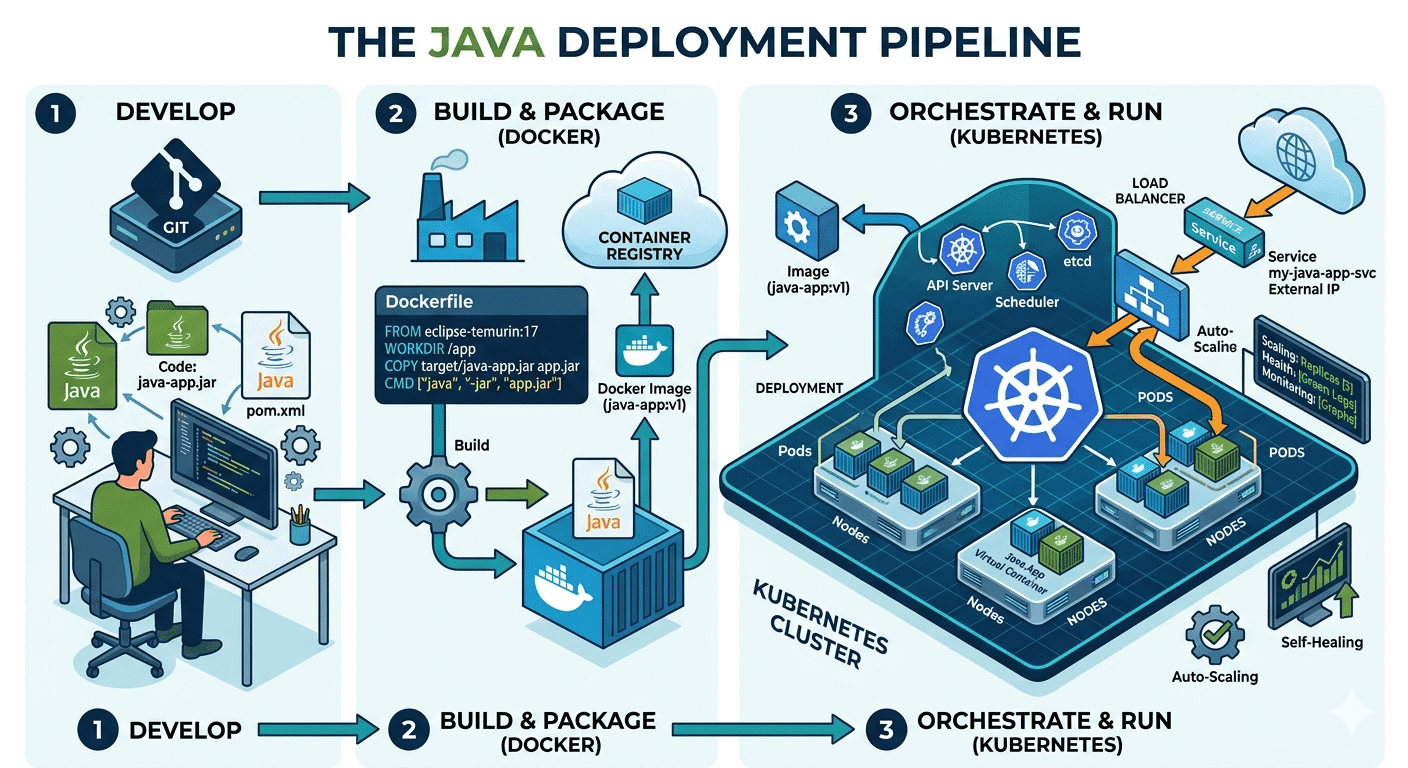
How Do Java Development Teams Use Docker and Kubernetes to Deploy Applications?
Last updated on: April 24, 2026Posted by: ExamRadar

AI vs Machine Learning: Key Differences Every Professional Should Know
Last updated on: February 13, 2026Posted by: ExamRadar

Office Cleaning Services That Elevate Sydney Offices
Last updated on: February 11, 2026Posted by: ExamRadar

What You Actually Learn About Exam Patterns From RBI Grade B Previous Year Papers?
Last updated on: February 9, 2026Posted by: ExamRadar